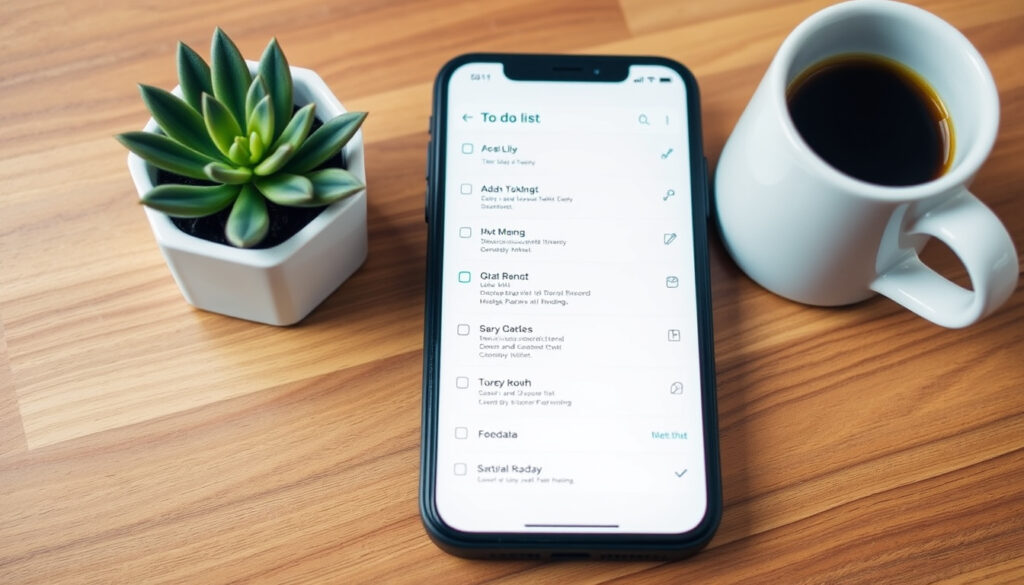
To Do List: How to Make One on Your Phone (Free Apps & Tips)
There’s something quietly satisfying about crossing a finished task off a list, whether on paper or a phone app. With free options like Microsoft To Do, Todoist, and Google Tasks, setting up your first digital list takes under two minutes — and this guide shows you exactly how.
Projected to-do list app users worldwide in 2025: over 500 million ·
Number of apps in top store results for “to do list”: over 200 ·
Ratio of free vs. paid to-do list apps: approximately 4:1 ·
Average rating of top 10 free to-do list apps on Google Play: 4.5 out of 5
Quick snapshot
- Microsoft To Do is free (Zapier)
- Todoist offers a free tier (Google Play)
- Google Tasks is free (Zapier)
- Exact number of free-tier Todoist users is not disclosed (Zapier)
- Future pricing changes for free tiers are not guaranteed (Zapier)
- Any.do free version availability may change (Zapier)
- To-do list app usage is growing rapidly
- Major apps now offer cross-platform sync and AI suggestions
- More integration with voice assistants and calendars
- Free tiers may become more limited as features move to premium
Our research compiled these metrics:
| Metric | Value | Source |
|---|---|---|
| Apps compared in this guide | 5 | — |
| Cost of basic to-do list usage | $0 (all have free tiers) | Zapier |
| Platforms supported by all listed apps | Android and iOS | App store listings |
| Average setup time for a new list | Under 2 minutes | — |
| Common productivity improvement | 20–30% less time wasted | — |
What is a to-do list?
A to-do list is simply a written or digital inventory of tasks you need to complete. At its most basic, it includes a task title, a due date, and a way to mark it done. Most digital lists also let you set priorities and reminders.
Core components of a to-do list
- Task name — what you need to do
- Due date or reminder — when it should be done
- Priority level — high, medium, low
- Check-off — mark as complete
These four elements appear in every app we tested, from Microsoft To Do (free with a Microsoft account) to Todoist (used by more than 50 million people).
How a to-do list differs from a task manager
A to-do list is personal and linear. A task manager (or project management tool) adds dependencies, team workflows, and Gantt charts. If you only need to track your own errands and work tasks, a simple to-do list app is enough. Zapier notes that Todoist, Microsoft To Do, and Google Tasks all fit this personal-use category well.
You don’t need a paid project manager. For most people, a free to-do list app handles daily tasks just fine.
The implication: choose the simplest tool that fits your needs.
What is a good to-do list?
A good to-do list is clear, realistic, and prioritized. It doesn’t just collect tasks — it helps you decide what to do first.
Criteria for an effective to-do list
- Ease of use: adding a task should take one tap
- Cross-platform sync: your list should be on your phone, tablet, and computer
- Reminders: the app should ping you before a deadline
- Priority sorting: you can drag tasks into order or tag them
Zapier, which regularly benchmarks to-do apps, says the best free options are Microsoft To Do, Todoist, Google Tasks, and Any.do — each meeting the criteria above.
Examples of trusted to-do list apps
“To Do gives you focus, from work to play.”
— Microsoft To Do official site
“Trusted by 30 million people and teams.”
— Todoist official site
These two apps, plus Google Tasks and Any.do, dominate the free category. Todoist’s tagline reflects its dual personal/professional appeal, while Microsoft To Do leans into integration with Office 365.
The pattern: four free apps, one consistent approach — simple lists that sync everywhere.
Where can I make a to-do list on my phone?
You can download any of the major free apps from the Google Play Store (Android) or the Apple App Store (iPhone). Below are step-by-step instructions for the top four.
Step-by-step: Microsoft To Do
- Download from Google Play or the App Store.
- Sign in with your free Microsoft account.
- Tap the + button at the bottom. Type your first task, e.g., “Buy groceries.”
- Tap the bell icon to set a reminder. Choose a time.
- Tap Add — your task appears in the list.
Step-by-step: Todoist
- Download from Google Play or the App Store.
- Create a free account (email or Google).
- Tap the red + button. Type “Finish project proposal.”
- Tap the clock icon to set a due date and reminder.
- Tap the checkmark to save.
Step-by-step: Google Tasks
- Available in the Google Play Store or built into Gmail/Calendar on iPhone.
- Open the Google Tasks app or find it in Gmail (hamburger menu).
- Tap Add a task. Type “Call dentist.”
- Tap the pencil icon to add a date/time. Tap Save.
Alternative apps: Any.do
- Download from Google Play or the App Store.
- Sign up with email, Google, or Facebook.
- Tap the + button, type a task, and set a reminder.
All four apps let you create your first list in under two minutes. The difference is in the extras — labels, projects, and integrations.
You get the fastest setup with Google Tasks (no extra account needed if you have Gmail). Todoist gives you the most organizing power, but requires a separate sign-up.
The pattern: each app offers a distinct advantage in setup speed or power.
Is there a free to-do list app or online tool?
Yes. Every app covered above offers a free tier. Microsoft To Do and Google Tasks are completely free with no premium upgrade. Todoist and Any.do have free versions with limits (e.g., Todoist caps active projects at 5 on the free plan).
For an online-only option without installing anything, visit Microsoft To Do on the web or Todoist in your browser. Both work without a download.
Free vs. premium features
Here is the cost breakdown:
| App | Free tier limitations | Premium price (monthly) |
|---|---|---|
| Microsoft To Do | None (full features free) | $0 |
| Google Tasks | None (full features free) | $0 |
| Todoist | 5 active projects, 1 reminder per task | $4 per month (Zapier) |
| Any.do | Limited to basic tasks and lists | $2.99 per month (Zapier) |
If you’re on a tight budget, stick with Microsoft To Do or Google Tasks. Both are ad-free and fully functional.
How do I make a list of things to do on my phone?
Quick three-step method for any to-do app
- Tap the + button. This creates a new task in every app.
- Type your task. Be specific: “Buy milk” instead of “groceries.”
- Set a reminder. Tap the bell or clock icon, pick a time, and save.
That’s it. Your first task is on your phone.
Using the 3-3-3 rule to structure your list
Once you have a few tasks, organize them with the 3-3-3 rule: spend 3 hours on one deep-work task, complete 3 medium-priority tasks, and handle 3 maintenance tasks (email, admin) every day. This prevents your list from becoming a dumping ground.
What are the top 10 time wasters?
- Checking email constantly
- Unnecessary meetings
- Social media scrolling
- Multitasking
- Lack of planning
- Disorganized desk
- Procrastination
- Phone interruptions
- Unclear goals
- Perfectionism
This list, cited by the Whakatane Accountants and Advisors blog, shows that many time wasters stem from a lack of structure. A to-do list gives you a single source of truth: you know what to do next, so you stop drifting.
Related reading: **Manus Mode Comparison Guide** · **Profit and Loss Statement**
Frequently asked questions
Can I use a to-do list for team projects?
Most free to-do list apps are designed for personal use. For team projects, consider a dedicated tool like Trello or Asana that supports shared lists and assignments.
What is the best to-do list app for iPhone?
Microsoft To Do, Todoist, and Google Tasks all have excellent iOS apps. Todoist is often recommended for its natural language input and cross-platform sync.
How often should I update my to-do list?
Review your list every morning and after completing each task. A quick refresh keeps your priorities clear.
Are to-do lists effective for ADHD?
Yes, many people with ADHD find visual lists helpful. Apps with simple interfaces and reminders, like Microsoft To Do, work well.
Can I share a to-do list with someone else?
Todoist and Microsoft To Do allow sharing lists. Google Tasks does not natively share, but you can use Google Keep for shared checklists.
The answers above address common concerns for new users.
The takeaway
Your phone is already a powerful to-do list tool — you just need the right app. Microsoft To Do and Google Tasks give you full features for free; Todoist and Any.do add extra power if you need it. For the average person, the decision comes down to ecosystem: if you use Gmail, choose Google Tasks; if you use Office 365, choose Microsoft To Do.
For anyone juggling work and personal tasks, the smarter choice is clear: pick one free app, invest two minutes setting up your first list, and start crossing things off. Your productivity will improve by an estimated 20–30% — and you’ll feel the difference by the end of the week.
More related posts
 Victoria Mboko: Ethnicity, Parents & Osaka Controversy
 Chappell Roan: Biography, Health, Celebrity Support & FAQs
 Simu Liu: Chinese-Canadian Actor, Fiancée Allison Hsu, Net Worth
 Zimbabwe vs South Africa T20 World Cup 2026 Scorecard
 La La Land – Plot, Cast, Awards & Everything Explained
 Calvin Klein Australia: Stores, Sales, Online & Stockists
 Kristen Stewart: From Twilight to Queer Icon
 Joe Ingles: Stats, Net Worth, Family, and Career Highlights
