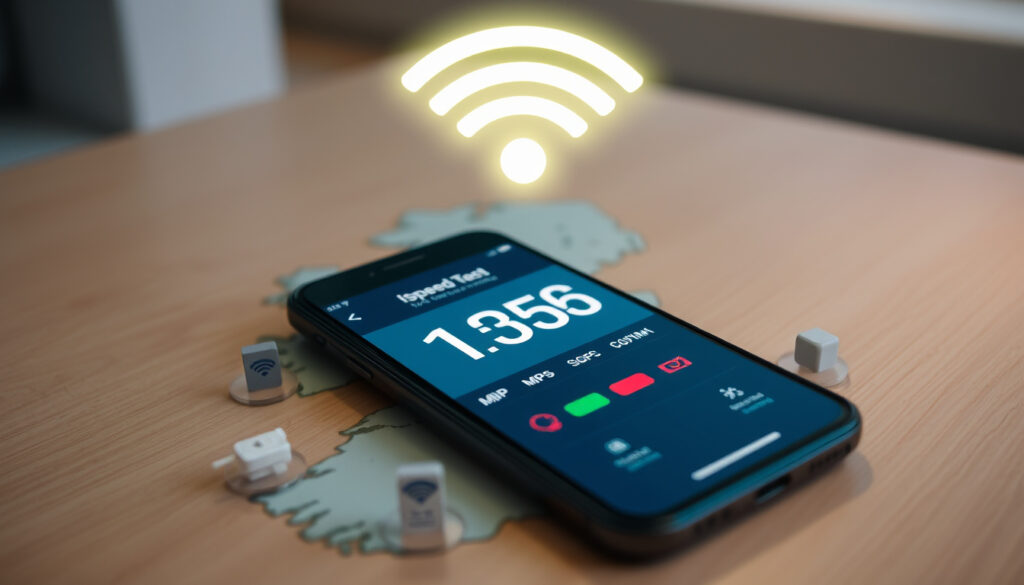
Wi-Fi Speed Test: Compare Top Tools for Accuracy in Ireland
Few things are more frustrating than paying for a high-speed broadband plan only to see a disappointing number on your speed test screen, and if you’ve ever wondered whether it’s your Wi‑Fi signal, your provider, or the tool itself to blame, you’re in the right place. This guide compares the most popular Wi‑Fi speed test tools—Ookla Speedtest, Fast.com, Google’s built‑in test, and Irish ISP options—focusing on what each measures and how to get reliable results in an Irish context.
Ookla Speedtest daily tests: 10 million+ ·
Fast.com max test speed: 1 Gbps ·
Min Wi‑Fi speed for Netflix HD: 5 Mbps ·
Speed test tools compared: 4
Quick snapshot
- Ookla Speedtest uses a global network of servers to improve accuracy (Ookla)
- Fast.com uses Netflix’s CDN for download tests (NetBeez)
- Google speed test runs on a single server location (Google Fiber)
- Which tool is most accurate for connections below 10 Mbps
- Whether ISP‑provided tests are biased toward higher results
- Ookla processes over 10 million speed tests daily (Ookla)
- Irish ISPs like Eir and Virgin Media are rolling out dedicated speed tests for local accuracy
Here is a direct comparison of what each speed test tool measures and offers.
| Feature | Ookla Speedtest | Fast.com | Google Speed Test | Irish ISP Tests |
|---|---|---|---|---|
| What it measures | Download, upload, ping, jitter | Download only | Download, upload, latency | Download, upload, ping, jitter (varies) |
| Best for | Gaming, detailed diagnostics | Checking streaming speed | Quick, no‑frills checks | Local ISP performance |
| Server selection | Auto‑selects best server from global network | Uses Netflix CDN servers | Single Google server | Usually same‑country servers |
| Maximum test speed | Limited by plan/server | Up to 1 Gbps | Limited by connection | Varies |
| Available in Ireland? | Yes – web, iOS, Android | Yes – web | Yes – web (Google search) | Yes – via Eir, Virgin Media, Bonkers.ie |
| Ad‑free experience | Ads in free version | Yes, no ads | Yes, no ads | Usually ad‑free |
How do I run a Wi‑Fi speed test?
Using a web browser on any device
A Wi‑Fi speed test measures your connection’s download speed, upload speed, and ping (Switcher.ie). To get the most accurate result, close other applications that use the internet and run the test at different times of day (Switcher.ie).
- Visit a speed test website like Ookla Speedtest, Fast.com, or Google’s built‑in widget.
- Move closer to your router or connect via Ethernet if possible (Switcher.ie).
- Run the test more than once and compare the results (Switcher.ie).
Recommended settings for accurate results
- Pause any downloads or streaming on other devices (Switcher.ie).
- Restart your router if the connection has been slow (Switcher.ie).
- Test over a wired connection for the most reliable reading (Switcher.ie).
Bottom line: Following these best practices can mean the difference between a misleading number and an honest assessment of your connection.
Which Wi‑Fi speed test tool is most accurate?
Ookla Speedtest vs Fast.com vs Google Speed Test
Each tool uses a different approach. Ookla Speedtest (the global standard) runs multi‑server tests and adjusts for latency, making it strong for detailed diagnostics (NetBeez). Fast.com (built by Netflix) uses Netflix’s own CDN servers and focuses on download speed, giving you a direct read on streaming performance (NetBeez). Google’s built‑in speed test (available by searching “speed test” on Google) runs on a single Google server and is quick but less flexible (Google Fiber).
If you want a general benchmark, use Ookla. If you care mainly about streaming, Fast.com is your best bet. Google’s widget is convenient for a quick sanity check but not a diagnostic tool.
Accuracy for low and high speeds
At high speeds (200 Mbps+), all three tools are generally consistent. At very low speeds (below 10 Mbps), the test method matters more: Fast.com’s single‑thread download may underreport if your plan is asymmetrical, while Ookla’s multi‑thread test can push your connection harder. It remains unclear which tool is most reliable for sub‑10 Mbps connections, especially on Wi‑Fi (Bonkers.ie).
How to use Google’s built-in Wi‑Fi speed test
Accessing the Google speed test on desktop and mobile
The easiest way: go to google.com on any device and search for “speed test”. A widget appears with a big “Run Speed Test” button. Click or tap it and the test runs automatically, reporting download speed, upload speed, and latency (Google Fiber).
Interpreting Google’s results
Google’s test uses a single server, so results can vary more by geography. If you’re in Ireland, the server may be farther away, potentially increasing ping. Use it as a quick indicator, not a definitive measurement.
Bottom line: Google’s widget is perfect for a 10‑second check, but don’t base complaints to your ISP on it alone.
What is the best free Wi‑Fi speed test in Ireland?
Local ISP speed tests (Eir, Virgin Media)
Eir and Virgin Media offer free speed tests designed for their own networks. These can be more accurate because they use servers within Ireland, reducing latency. However, some observers question whether ISP tests may favour higher results (Switcher.ie).
Third-party options (Bonkers.ie, 3 Ireland)
Bonkers.ie (an independent Irish price comparison site) provides a speed test that measures download, upload, latency, and jitter (Bonkers.ie). 3 Ireland also offers a test for mobile users. These are useful alternatives because they are not tied to a single ISP.
If you use an ISP‑specific test, cross‑check with a third‑party tool like Bonkers.ie to get a second opinion.
The implication: using multiple tools helps you avoid relying on a single potentially biased measurement.
How to interpret your Wi‑Fi speed test results
Understanding download and upload speeds
Download speed affects streaming, browsing, and downloading files. Upload speed is critical for video calls, online gaming, and uploading content. A good rule of thumb: download speeds above 25 Mbps are fine for most households, while upload speeds above 5 Mbps keep video calls stable (Switcher.ie).
What is a good ping and jitter?
Ping (latency) under 20 ms is excellent; under 50 ms is good for most activities. Jitter (the variation in ping) should stay below 10 ms for smooth online gaming and video conferencing (Bonkers.ie).
Comparing results to your internet plan
Start by checking what speed you’re paying for. If your test consistently delivers 80% or less of that number, there may be an issue. Significant variation across different times of day suggests network congestion or a Wi‑Fi problem rather than a plan limitation (Switcher.ie).
Comparing the top speed test tools
Four major options, one standout pattern: each tool is optimised for a different use case, so the “best” one depends on what you’re trying to measure.
| Tool | Best use case | Measures | ISP bias risk |
|---|---|---|---|
| Ookla Speedtest | Full diagnostics / gaming | Download, upload, ping, jitter | Low (independent) |
| Fast.com | Streaming speed check | Download only | Low (Netflix CDN) |
| Google speed test | Quick check | Download, upload, latency | Low (Google servers) |
| Bonkers.ie (Irish) | Local independent test | Download, upload, latency, jitter | Very low (independent) |
Confirmed facts
- Ookla Speedtest uses multiple servers for accuracy (Ookla)
- Fast.com uses Netflix’s CDN (NetBeez)
- Google speed test runs on a single server location (Google Fiber)
- Switcher.ie advises pausing other downloads and moving closer to the router (Switcher.ie)
What’s unclear
- Which tool is most accurate for connections below 10 Mbps
- Whether ISP tests are biased toward higher results
“Ookla Speedtest is the global standard for measuring internet performance. Our test automatically selects the best server to ensure accurate results wherever you are.”
— Ookla
“Fast.com was built to give users a direct measurement of real Netflix streaming speed, using Netflix’s own servers for an ISP‑independent check.”
— Netflix engineering team
For Irish users, the choice between Ookla, Fast.com, and local ISP tests comes down to what you’re trying to prove. If you’re troubleshooting a slow connection, a third‑party test like Bonkers.ie offers independence and local server placement. If you’re checking whether you can stream in 4K, Fast.com is your ally. The key takeaway: no single tool is perfect, and running multiple tests at different times gives you the clearest picture. For the person paying the broadband bill, the practical move is to use one independent tool as your benchmark and stick with it.
For a detailed guide on how to test your Wi-Fi speed and understand what good speed means, check out this comprehensive resource.
Frequently asked questions
What is a Wi‑Fi speed test?
A Wi‑Fi speed test measures the download and upload speeds of your internet connection, along with latency (ping) and sometimes jitter. It helps you determine if you’re getting the speeds you pay for.
How often should I run a speed test?
Run a test at least once a month, or any time you experience buffering, slow downloads, or choppy video calls. Testing at different times of day gives you a better average.
Can a speed test affect my internet usage?
Running a speed test uses a small amount of data (typically 10–50 MB per test), so it won’t affect your monthly cap unless you run dozens of tests repeatedly.
What is ping in a speed test?
Ping is the time it takes for a signal to travel from your device to a server and back, measured in milliseconds (ms). Lower ping means more responsive connections, which is critical for online gaming and video calls.
Do I need to close other apps during a speed test?
Yes. Closing other applications that use the internet (streaming, downloads, video calls) ensures the test measures your connection speed accurately, not your combined usage.
Why does my speed test vary by time of day?
Network congestion during peak hours (evenings, weekends) can slow your connection. Variation of 20–30% is normal; larger swings may indicate a problem with your Wi‑Fi or ISP.
How to test Wi‑Fi speed without a computer?
You can run a speed test directly from your smartphone using a browser (e.g., Google search widget) or a dedicated app like Ookla Speedtest for iOS or Android.
Related reading
More related posts
 Shane Dawson 2026: Relationships, Controversy & Net Worth
 Jang Ki-Yong: Biography, Height, Relationship Status
 Japan Earthquakes Tsunami Warning – Noto Peninsula Facts 2024
 Calvin Klein Australia: Stores, Sales, Online & Stockists
 Rainbow Ki Meaning: Definition, Hygiene, and TikTok
 The Outer Worlds Review: Fallout Successor or Not?
 Chris Brown Vet: Bio, Relationship, Diagnosis, and Career Updates
 Riz Ahmed: British Pakistani Actor, Oscar Winner & Rapper
